
- Automation Cloud and Test Cloud
- Automation Cloud Public Sector and Test Cloud Public Sector
- Automation Cloud Dedicated
October 2026
October 2026 release notes for Orchestrator in Automation Cloud.
October 21, 2026
Official UiPath package feed is moving to pkgs.uipath.com
The official UiPath package feed that supplies the Orchestrator host Libraries feed is moving to https://pkgs.uipath.com/official/index.json, replacing the Azure DevOps-hosted address https://pkgs.dev.azure.com/uipath/Public.Feeds/_packaging/UiPath-Official/nuget/v3/index.json.
The new feed is already available and serves the same packages. Microsoft retired public projects in Azure DevOps and will convert the remaining ones to private during 2027, after which the old address requires authentication and can no longer be reached anonymously.
If your network restricts outbound traffic, add pkgs.uipath.com to your allowlist. If you set the host Libraries feed to the official address explicitly, for example in tenant settings, machine images, or unattended installations, update it to the new address. Both addresses work in parallel during the transition.
The Azure DevOps-hosted address is deprecated and planned for removal by April 2027. For the announced dates, see the deprecation timeline.
October 14, 2026
Autopilot Chat removal
We removed Autopilot Chat from Orchestrator. Autopilot Chat will be available again in Orchestrator in the near future, with improved features.
October 12, 2026
New Orchestrator layout
We are introducing a new, redesigned layout for Orchestrator. The new layout groups pages by the task you are performing, keeps the current folder always in view, and brings folder resources and creation actions together in one place.
The new layout is not enforced. The classic layout remains available, and you can switch between the two layouts at any time.
Try the new layout
To switch to the new layout, select Try new layout in the Orchestrator header. The option is available to all users.
Folder context
The folder tree moved to the top of the sidebar, below the search field, so switching folders is always at hand.
- The Folders tree lists all folders you have access to. Select All folders to view content aggregated across the tenant and its folders.
- You can search the tree, or collapse it to a compact folder card that shows the folder you are working in.
- Hover over a folder to display its three-dot menu, which gives you quick access to folder actions, such as Copy folder path, Start job, Create subfolder, Edit, and Move.
Task-based navigation
Pages are now grouped by what you are doing, instead of one long row of tabs. Each group contains the related pages as tabs.
- Overview: health, inventory, and recent activity for the selected scope, including the Processes, Resources, Latest jobs, and Deployments overview cards.
- Monitoring: agents, machines, processes, queues, and SLA monitoring.
- Executions: Jobs, Logs, and Review requests.
- Deployments registry: Solution deployments, Processes, and Resources. This is the former Registry.
- Testing: Test sets, Test cases, Test executions, and Test data queues. Available when a specific folder is selected.
Tenant-level pages are grouped in the Tenant section at the bottom of the sidebar:
- Access: Folder management, Access rules, Roles, and Audit.
- Infrastructure: Machines, Robots, Credentials, and License.
- Feeds: solution packages, solution projects, packages, libraries, apps, tests, and feeds.
- General settings: all tenant settings tabs, such as General, Robot security, and Deployment.
All resources in one place
Folder resources such as queues, assets, triggers, storage buckets, connections, indexes, and MCP servers are now available on a single page, under Deployments registry → Resources. Use the type filters at the top of the page to show only the resources you need.
Webhooks are now also available on this page, under Deployments registry → Resources → Webhooks, when All folders is selected.
Create new menu
Hover over All folders in the folder tree and select the three-dot menu button to open the Create new menu. When the folder tree is collapsed, select the All folders card instead. From here, you can create the following entities without leaving your current page:
- Solution deployments, packages, and libraries
- Access rules for users, robot accounts, groups, and external apps
- Tenant roles and folder roles
- Machine templates, elastic robot pools, and cloud robots
- Credential stores and credential proxies
- Webhooks
The menu also includes Unattended setup and My Reports.
Quick actions in the page header
The Overview page header gives you quick actions for the selected scope:
- With All folders selected, use Add to create packages, libraries, access rules, roles, machines, credential stores, and webhooks, or Deploy to deploy a solution.
- With a specific folder selected, use Add to add processes, apps, triggers, queues, assets, storage buckets, MCP servers, and more to the folder. The header also includes Start job and Deploy.
Collapsible sidebar
Collapse the sidebar to a compact icon rail to get more space for your work. Everything stays one click away, and you can expand the sidebar again at any time.

Switch back anytime
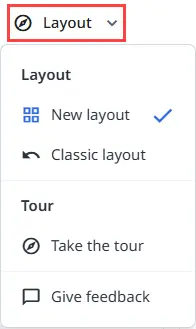
Open the Layout menu in the header to switch back to the classic layout at any time. From the same menu, you can also select Take the tour for a guided tour of the new layout, or Give feedback to tell us about your experience.
For more information, check the About the new Orchestrator layout and New layout navigation map pages.
Bulk actions run on eligible rows in mixed selections
Bulk actions in Orchestrator grids are no longer disabled when your selection includes rows they don't apply to. As long as at least one selected row is eligible, the action stays available, runs only on the eligible rows, and tells you how many rows it skipped. This applies to the following actions:
- Remove for queue transactions, skipping items that are already deleted.
- Cancel and Terminate for jobs, skipping jobs that can no longer be stopped.
- Enable and Disable for time, form, HTTP, and event triggers and for test schedules, skipping entries already in the requested state.
- Delete for assets, users, and roles, skipping entries that can't be deleted, such as static roles.
- Unassign for folder machines, skipping inherited machines.
An action is disabled only when none of the selected rows are eligible.
Deleting video recordings requires View permission on the job or queue
Deleting a video recording now requires View permission on the job or queue the recording belongs to, instead of Delete, together with Delete permission on Execution Media. You can now build a role that reviews and deletes recordings without also letting it delete jobs or queue items.
Custom roles that have Delete but not View on jobs or queues can no longer delete recordings. The change also applies to the API:
DELETE /api/VideoRecording/jobs/{jobKey}requiresJobs.ViewandExecutionMedia.Delete.DELETE /api/VideoRecording/QueueItems/{queueItemId}requiresQueues.ViewandExecutionMedia.Delete.
For details, see About recording and Video recordings requests.
Personal Workspace changes recorded in audit logs
Orchestrator now records an audit entry when a Personal Workspace is created, activated, or deactivated as a result of a directory or privilege change. For example, an entry is recorded when an administrator turns a user's personal automation setup on or off, or when directory provisioning deactivates a user. Previously, only the triggering change was audited.
For details, see About audit.
Redesigned asset form
The form for adding and editing assets has a new design. The same form also opens when you create an asset from the asset suggestions or from the package requirements grid.
- The Details section groups the asset name, description, type, access, labels, and properties. For Object JSON assets, a Schema section lets you define the object properties.
- The Access scope options are replaced by the Expose value to API toggle. Automations can always read the asset. With the toggle on, external apps and integrations can also read the value through the Orchestrator API.
- The global value and the overrides are listed in the Global value & overrides grid, where you can search, page through, and remove multiple values at once. You edit the global value or an override in a side panel.
- An override, added with Add override, can target a user assigned to the current folder or a user from the identity directory, and optionally a specific machine.
- When you add or edit an override, the Account dropdown shows an icon for each account type: user, robot account, or external application. The same icons replace the initials in the grid, which falls back to initials when the account type can't be determined.
- The form displays a message when no credential store is available, or when the credential stores fail to load.
The asset side panel also uses the term account instead of robot, and shows the scope of per-account values as Per account instead of Per robot.
For details, see About assets.
Trace ID for credential store failures
When a robot fails to fetch credentials from a credential store, Orchestrator now logs the trace ID of the failed request and includes it in the job fault details. This applies to all credential stores, including the Orchestrator Credentials Proxy. Use this ID to find the exact request that failed when troubleshooting.
For details, see Integrating credential stores.
Maestro Flow node jobs run under one identity
When a Maestro Flow process runs, Orchestrator starts a separate job for each node in the flow. Node jobs that don't specify a robot now run under the caller's identity, so all the node jobs of a flow use the same identity. Previously, the identity was resolved separately for each node, so nodes of the same flow could run under different identities.
A robot explicitly selected for a node still takes precedence. The change applies only to the first-level nodes of a flow.
Apps processes renamed to Code-behind
Processes of type Apps are now called Code-behind. The new name appears wherever Orchestrator shows this process type, for example:
- The Type filter on the Processes page, under Automations.
- The folder homepage, where the Apps widget is now called Code-behind.
Bug fixes
- We fixed an issue where long-running workflows started from UiPath Assistant by a user with a developer license, such as Automation Developer, never resumed on tenants using the Unified Pricing licensing model. Resumed jobs now run on robots with a Testing or Unattended license. The fix doesn't apply to serverless robots.
October 7, 2026
Enforced encryption for Orchestrator tenants
Organizations on the Enterprise plan (Flex) or the Standard or Enterprise plan (Unified Pricing) can now request enforced encryption for their Orchestrator tenants. When enabled, Orchestrator encrypts sensitive job, job event, robot log, queue item, and Orchestrator storage bucket data at rest, using a key from the key management service (KMS). Queues and Orchestrator storage buckets are encrypted automatically, and the option to store them unencrypted is no longer available.
To enable enforced encryption, contact your technical account manager or UiPath Support. Encrypted fields can't be searched, and they remain encrypted in UiPath Insights.
For details, see Enforced encryption.
October 5, 2026
Bug fixes
We fixed an issue where events for queue items in queues set to Store in encrypted format were published unencrypted. These events are now encrypted too, so data from encrypted queues no longer shows up as plain text in Insights.
For details, see Managing queues in Orchestrator.
- October 21, 2026
- Official UiPath package feed is moving to pkgs.uipath.com
- October 14, 2026
- Autopilot Chat removal
- October 12, 2026
- New Orchestrator layout
- Bulk actions run on eligible rows in mixed selections
- Deleting video recordings requires View permission on the job or queue
- Personal Workspace changes recorded in audit logs
- Redesigned asset form
- Trace ID for credential store failures
- Maestro Flow node jobs run under one identity
- Apps processes renamed to Code-behind
- Bug fixes
- October 7, 2026
- Enforced encryption for Orchestrator tenants
- October 5, 2026
- Bug fixes